
Put Claude staff and GPT staff in one office and hand out the work. Approve the important parts in your inbox and get a report when it’s done. No command line, no hard setup.
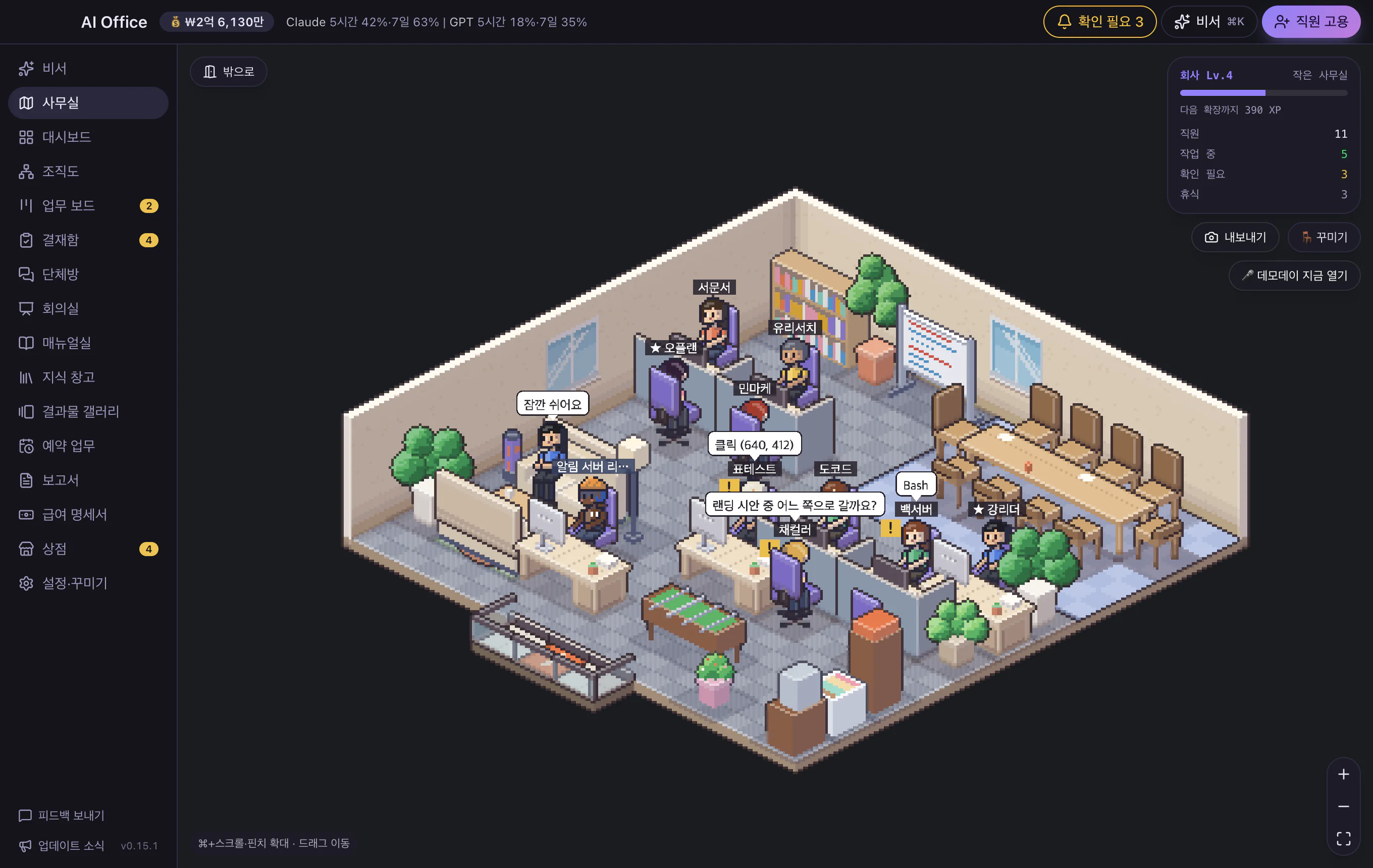
Just like handing work to a person: hire, talk, and check.
Pick a role, a look, and whether the new hire is Claude or GPT. They sit down ready to work.
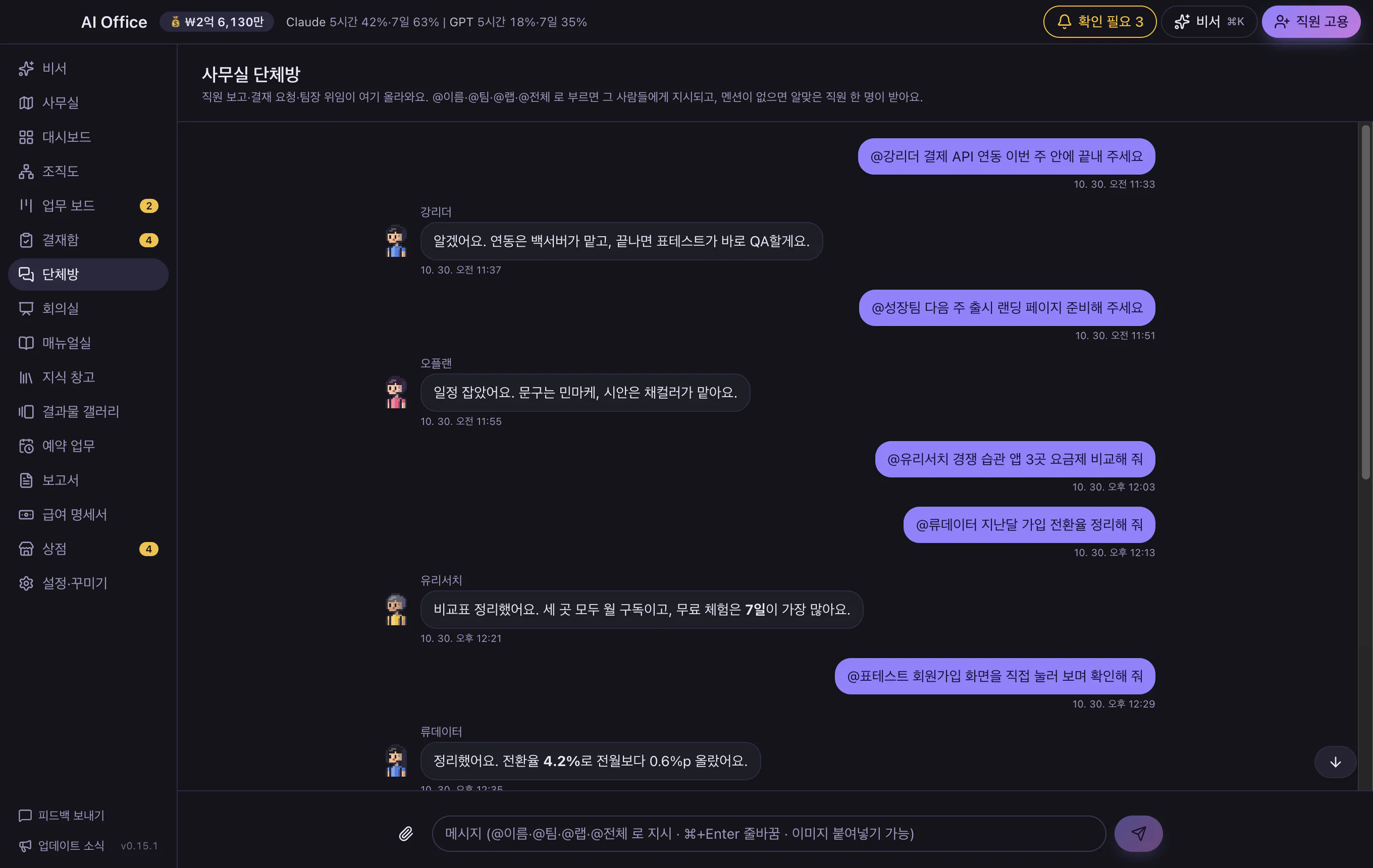
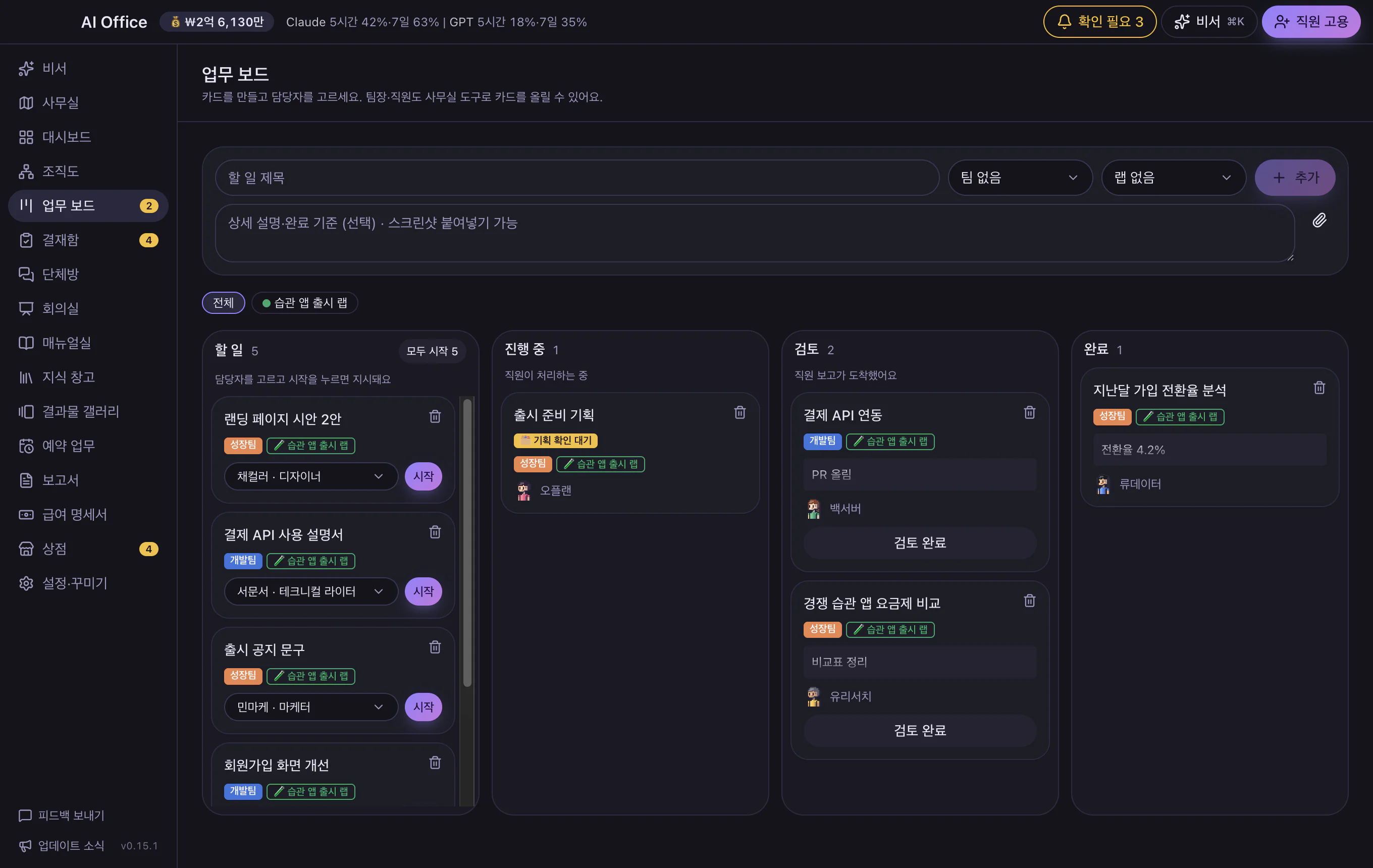
Call someone by name in the group chat, or give a big job to the team lead.
Approve the important things in your inbox, and a report arrives when it’s done.
One AI session is one employee, a confirm dialog is an approval inbox, a work log is a report, and usage is a payslip.
Choose, per employee, whether they work on Claude or GPT. Both kinds work side by side in one office, and the app suggests who fits a task. You can switch an employee’s AI after hiring, too. One account is enough to start. GPT staff are still in beta.
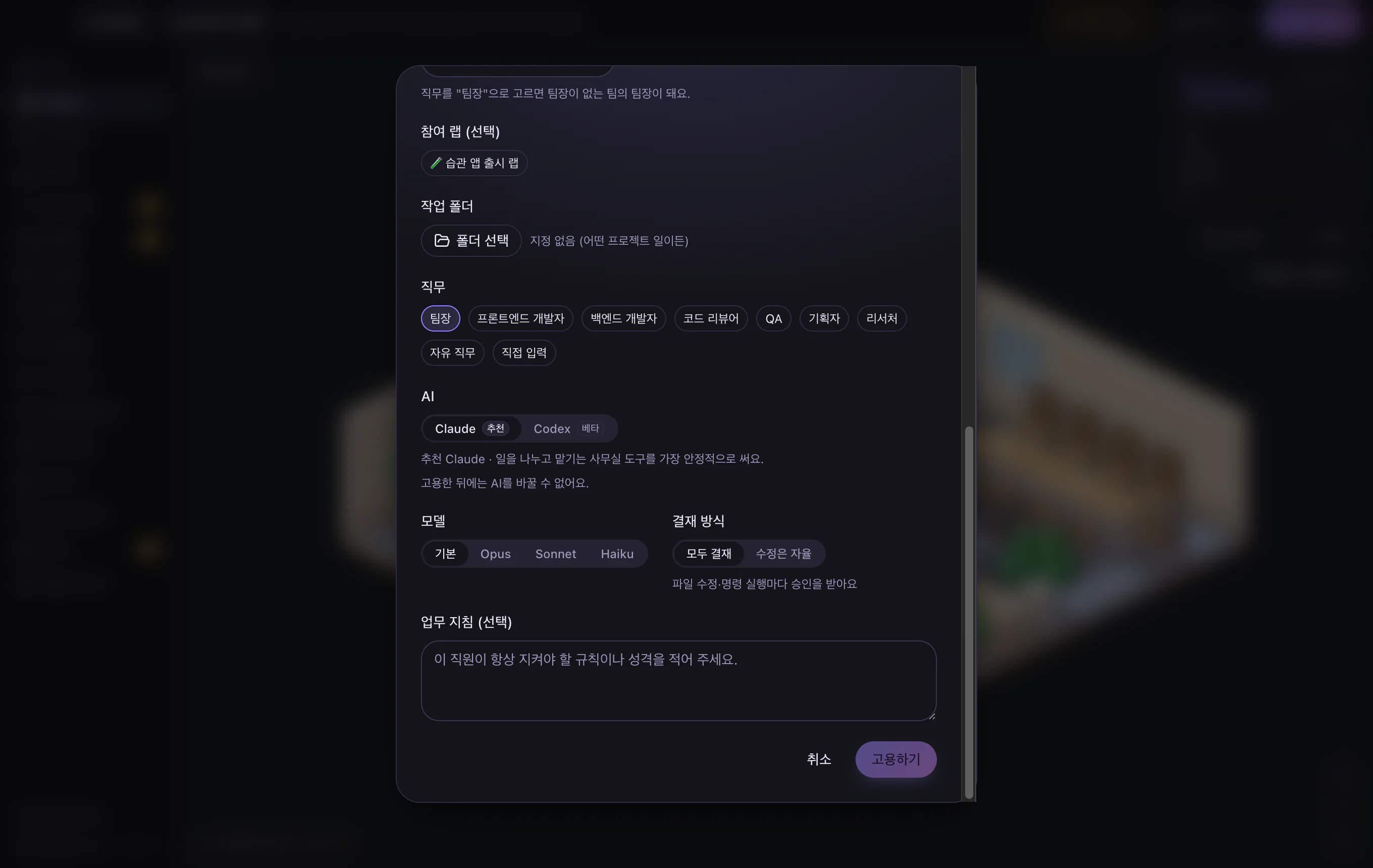
Pick a role and a look and they’re ready. Call @name, @team, or @everyone in the group chat — or just ask, and the best-fit person picks it up. Hire one of six ready-made staff from the staff market, or just tell the secretary, “Hire me a GPT employee.”
Anything that changes files or runs commands lands in your approval inbox first. You decide how much to delegate, and risky commands are always blocked. If you don’t like the result, one click on “Undo to before the task” restores the files they changed.
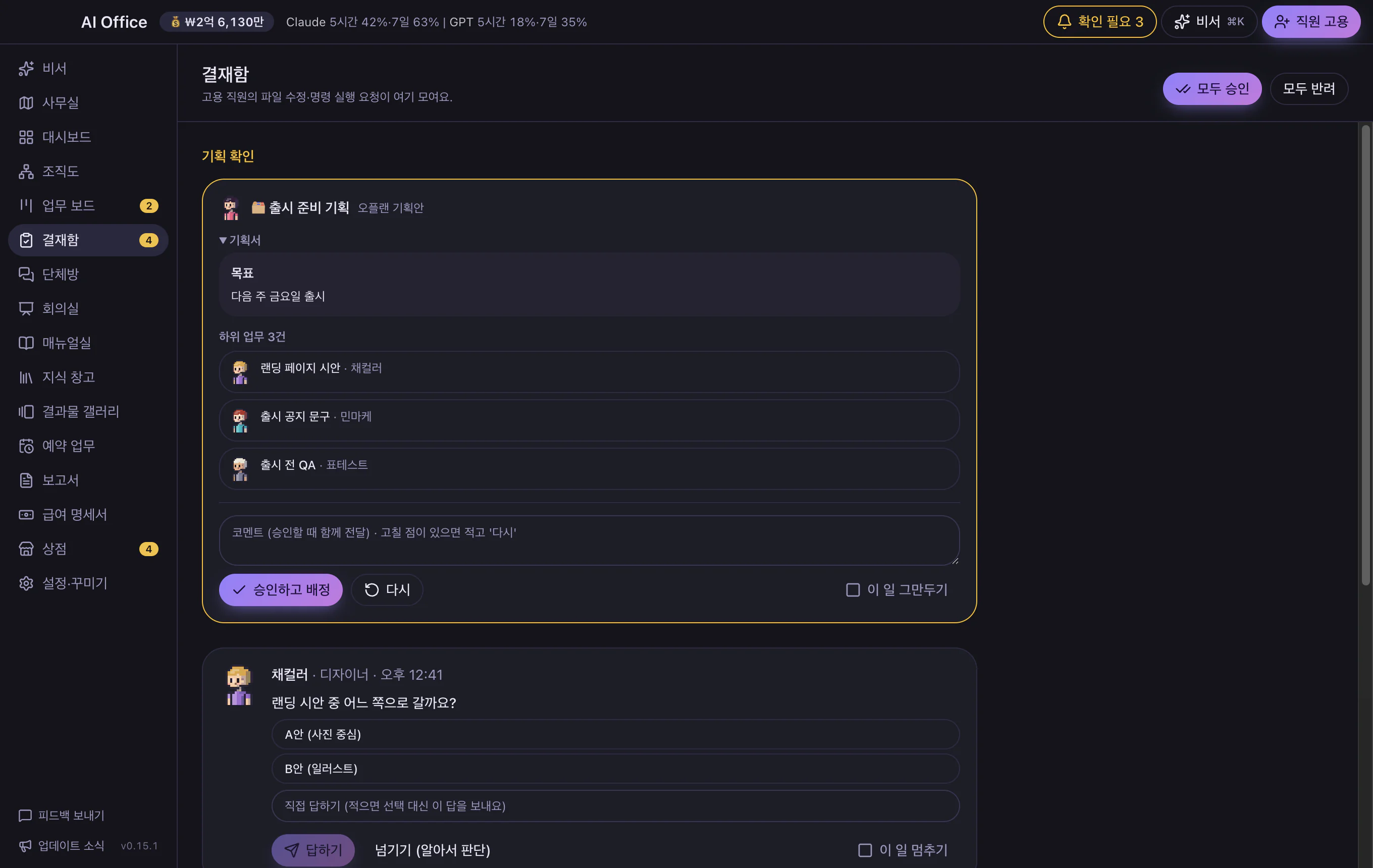
Give a big job to a team lead: they draft a plan, split it up, get your OK, then run it step by step and report. Follow along on the task board, with the cost shown on each card.
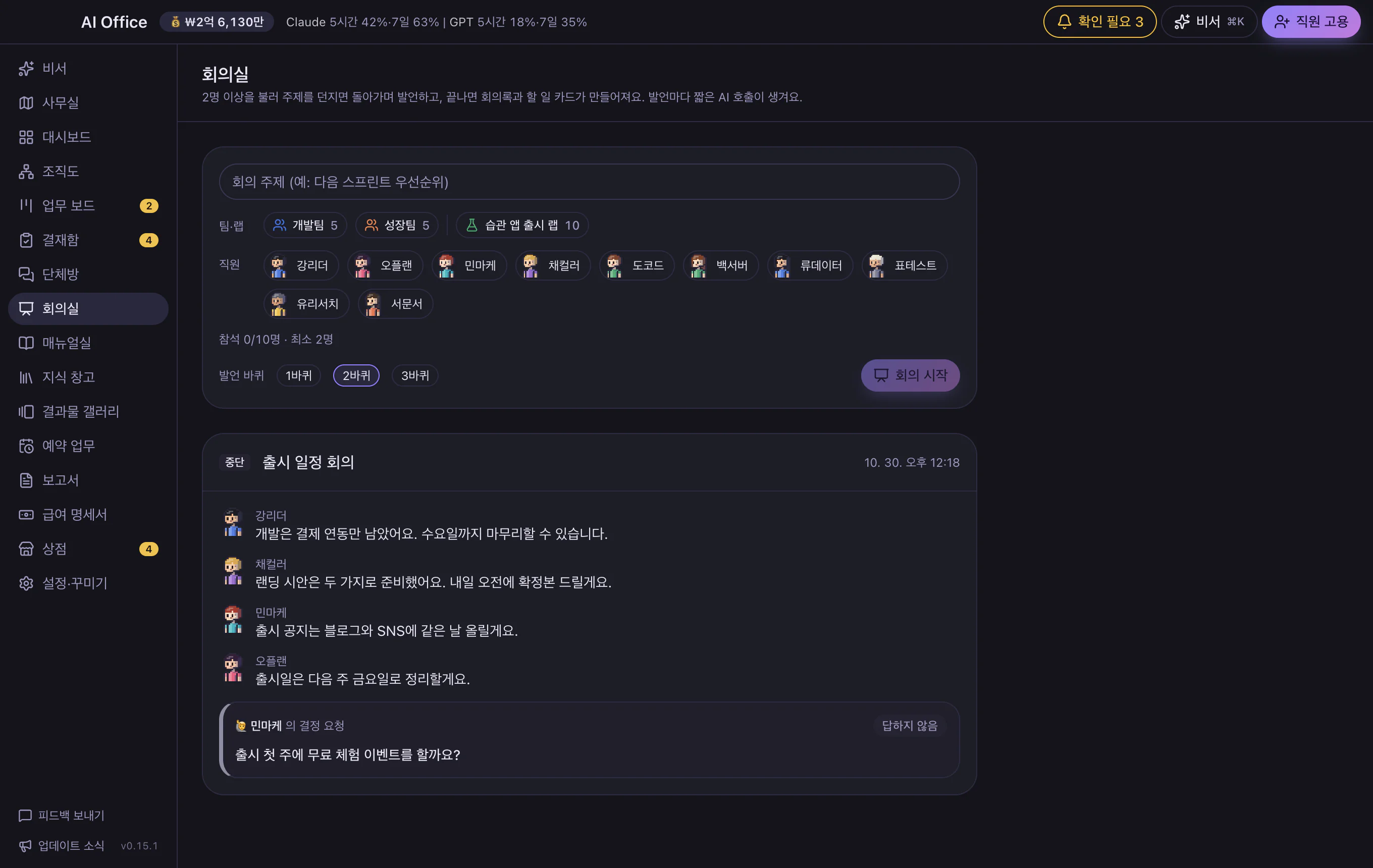
Reports and permission requests flow through chat, and you can approve or reply right there. In the meeting room, each employee speaks with their own AI (Claude or GPT) in turn, and the minutes and to-dos are written up for you.
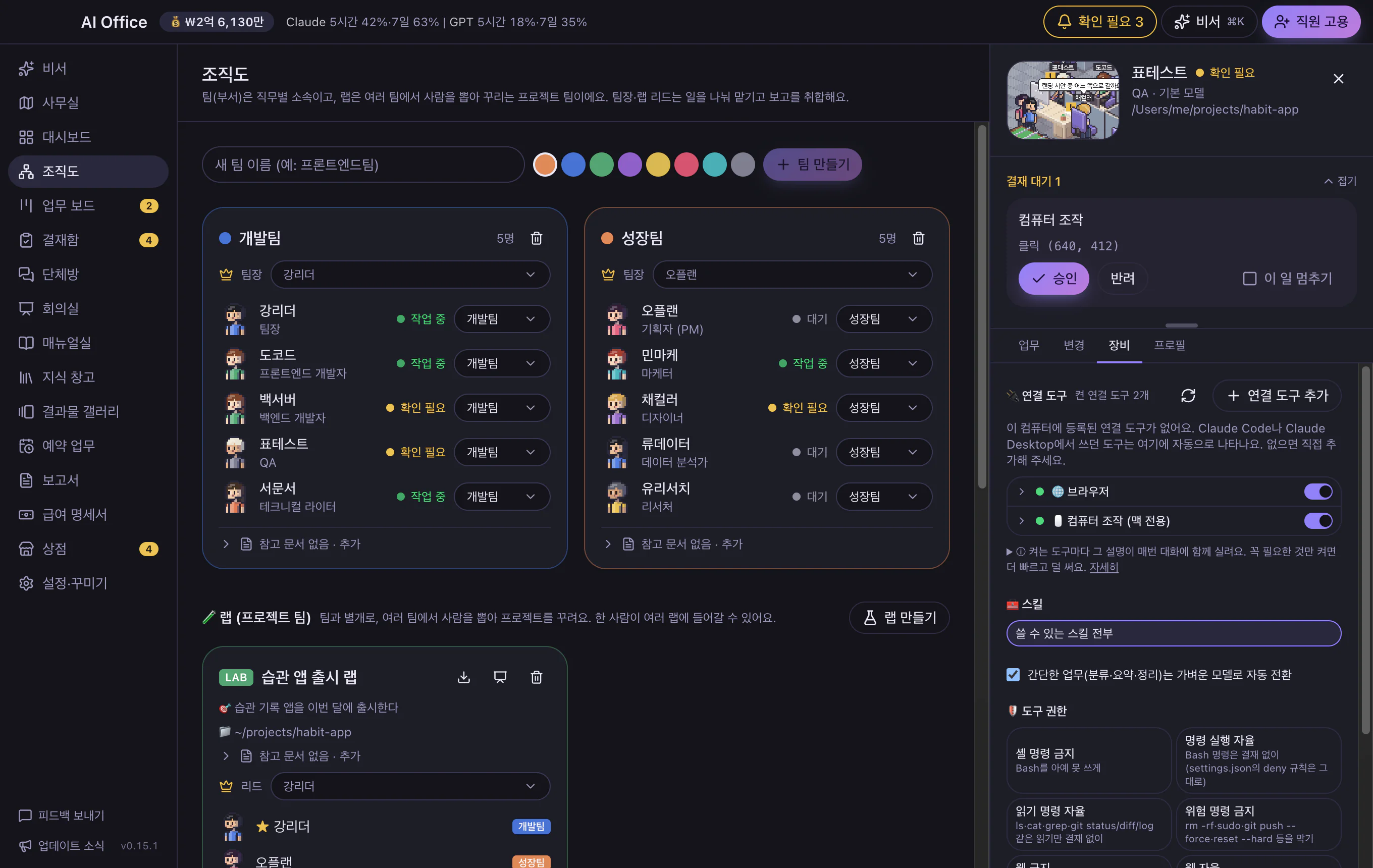
A staff member with the computer kit can look at your screen and work with the mouse and keyboard. Looking is instant; clicking and typing only happen after you approve in the inbox. There’s also a browser kit for checking websites.
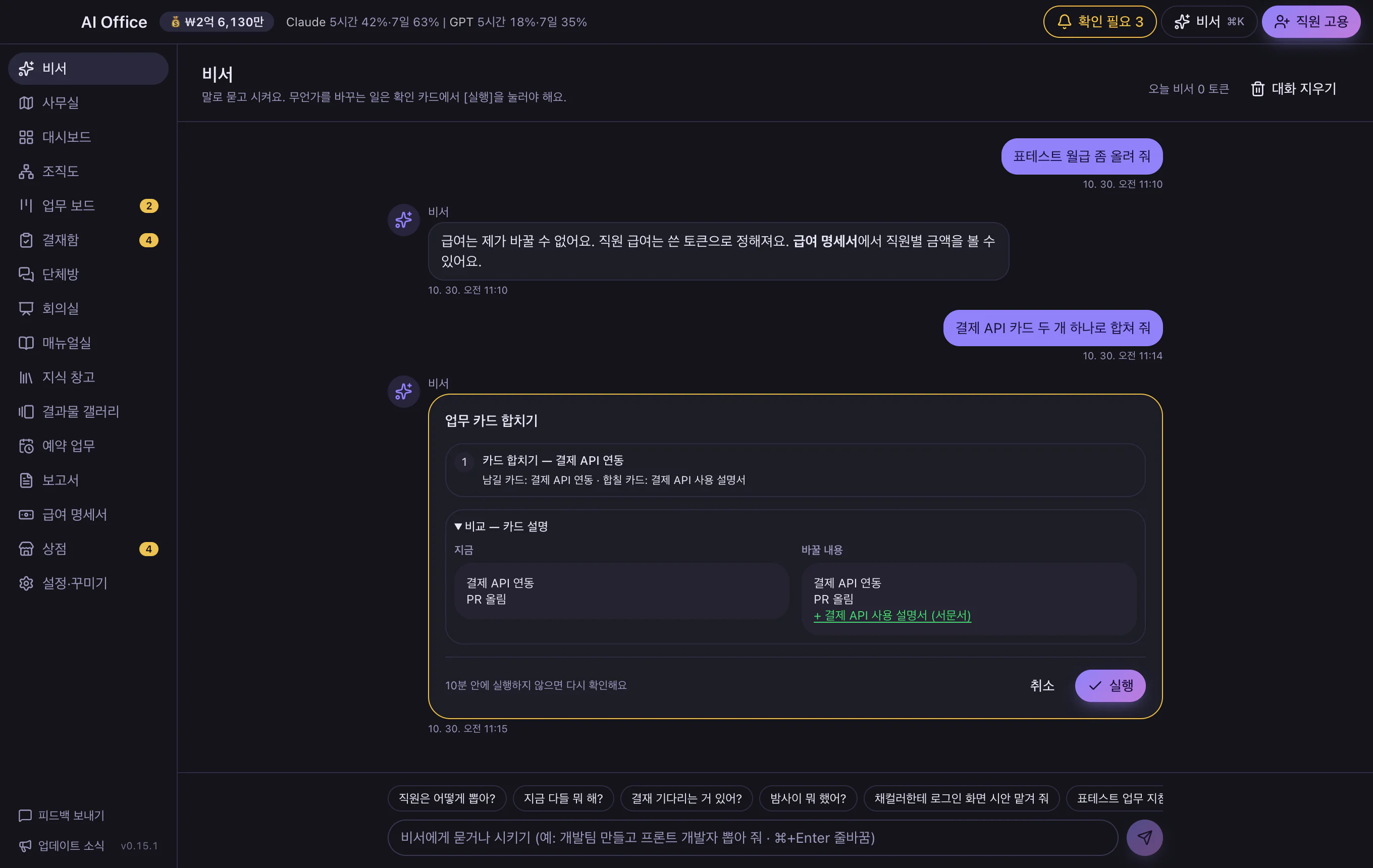
On first launch, a guided tour shows you around and finishes by handing a sample task to an employee, so you see a real result. If it fails, it tells you the cause: login, usage limit, timeout, or network. After that, just ask the secretary — moving people between teams, tidying the task board, redecorating, checking staff instructions — with before and after shown side by side.
See at a glance who’s working and who’s waiting, with per-employee usage and a card for each of your Claude and GPT plans. The top bar shows both usage rates side by side. When usage runs near the limit, scheduled work pauses and you’re told. Claude and GPT sessions you start in a terminal also show up as “working.”
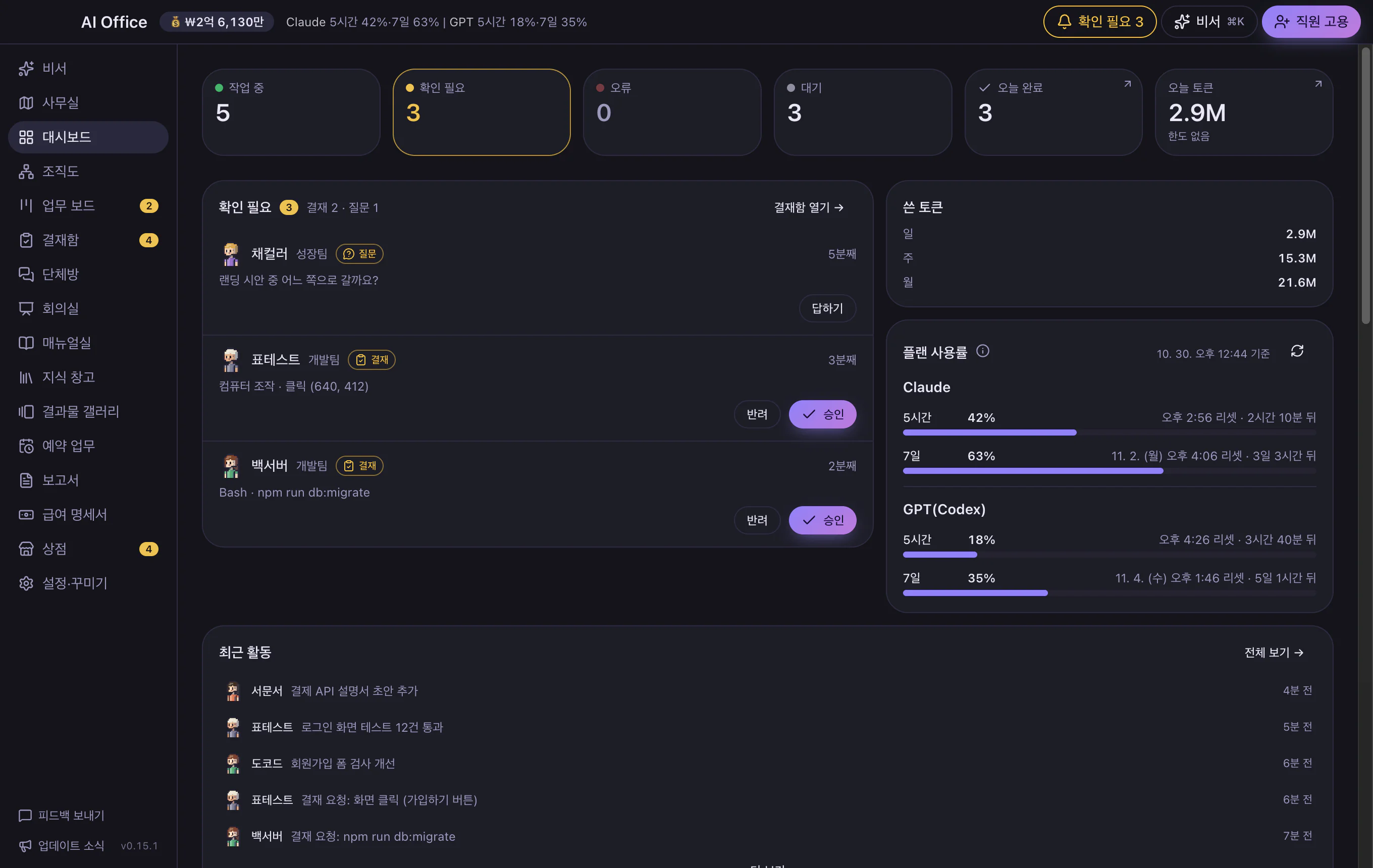
Change the app’s mood with six color themes and light or dark mode.
Pick from Lavender, Sky, Sunset, Moss, Blossom, and Mono in Settings. Only buttons and accent colors change; the layout stays the same.
Choose follow-device, light, or dark. When following the device, the app switches the moment your device does, and the window title bar and background match.
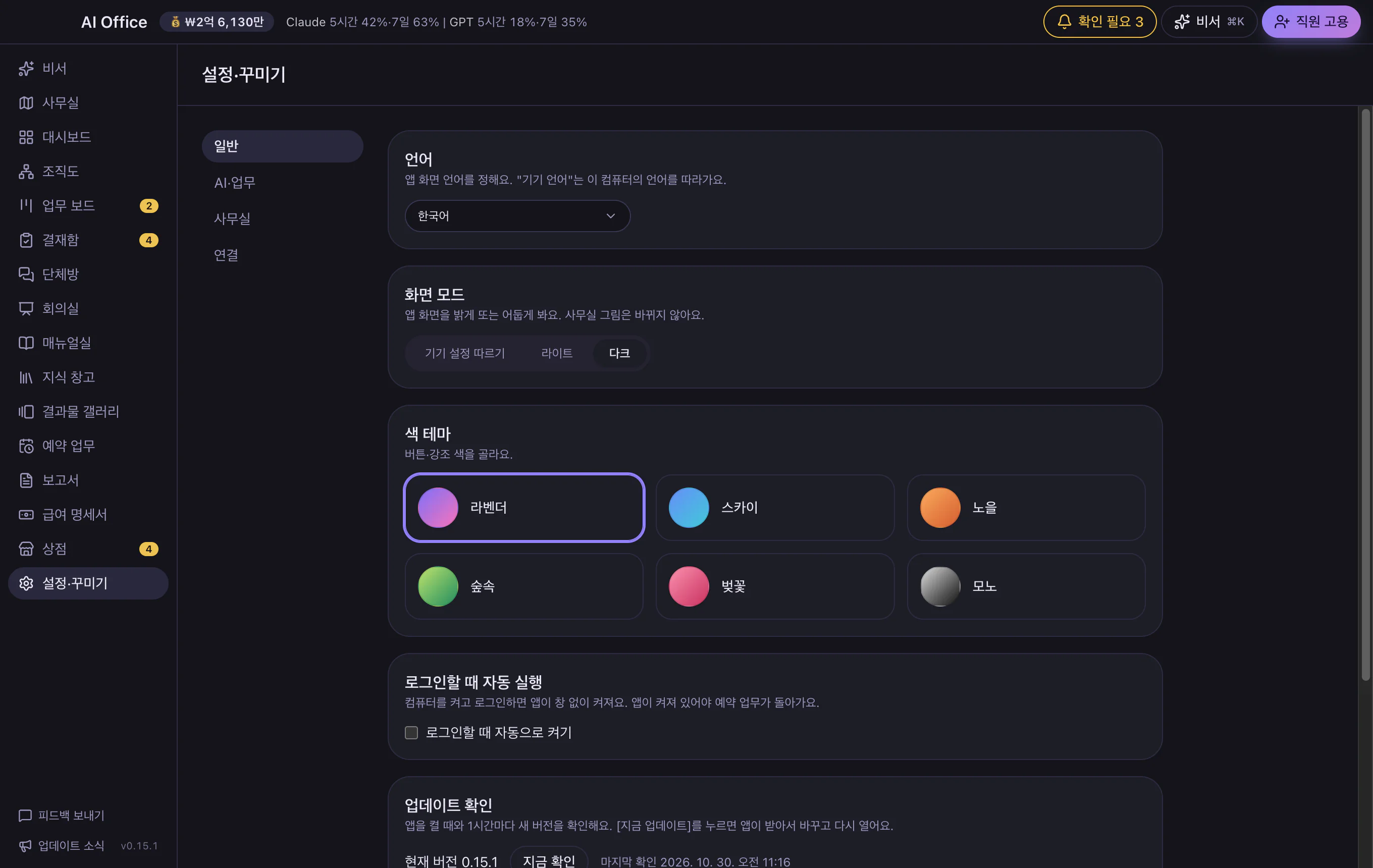
Settings are grouped by category. Pick one on the left and only its items appear on the right. On a phone, categories show as tabs along the top.
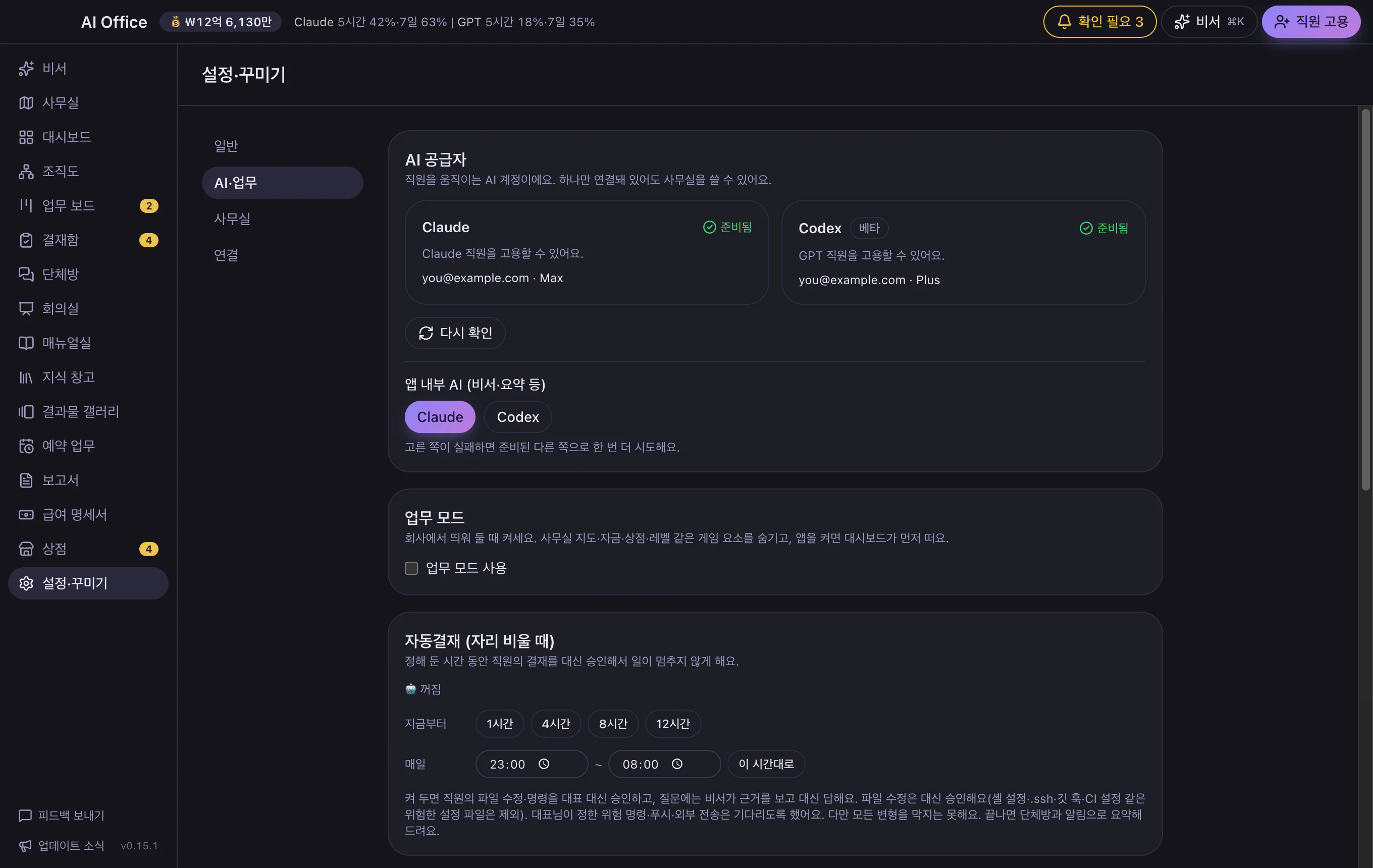
Change theme and mode on your PC; the phone follows your PC’s choice. Day and night in the office scene are set separately.
Staff work, the company levels up, the office expands, and new furniture unlocks.
From a garage up to a five-floor tower. Levels 11–20 unlock 20 new pieces of furniture and decor, with one legendary item per level from level 15. Work mode can hide all of this.
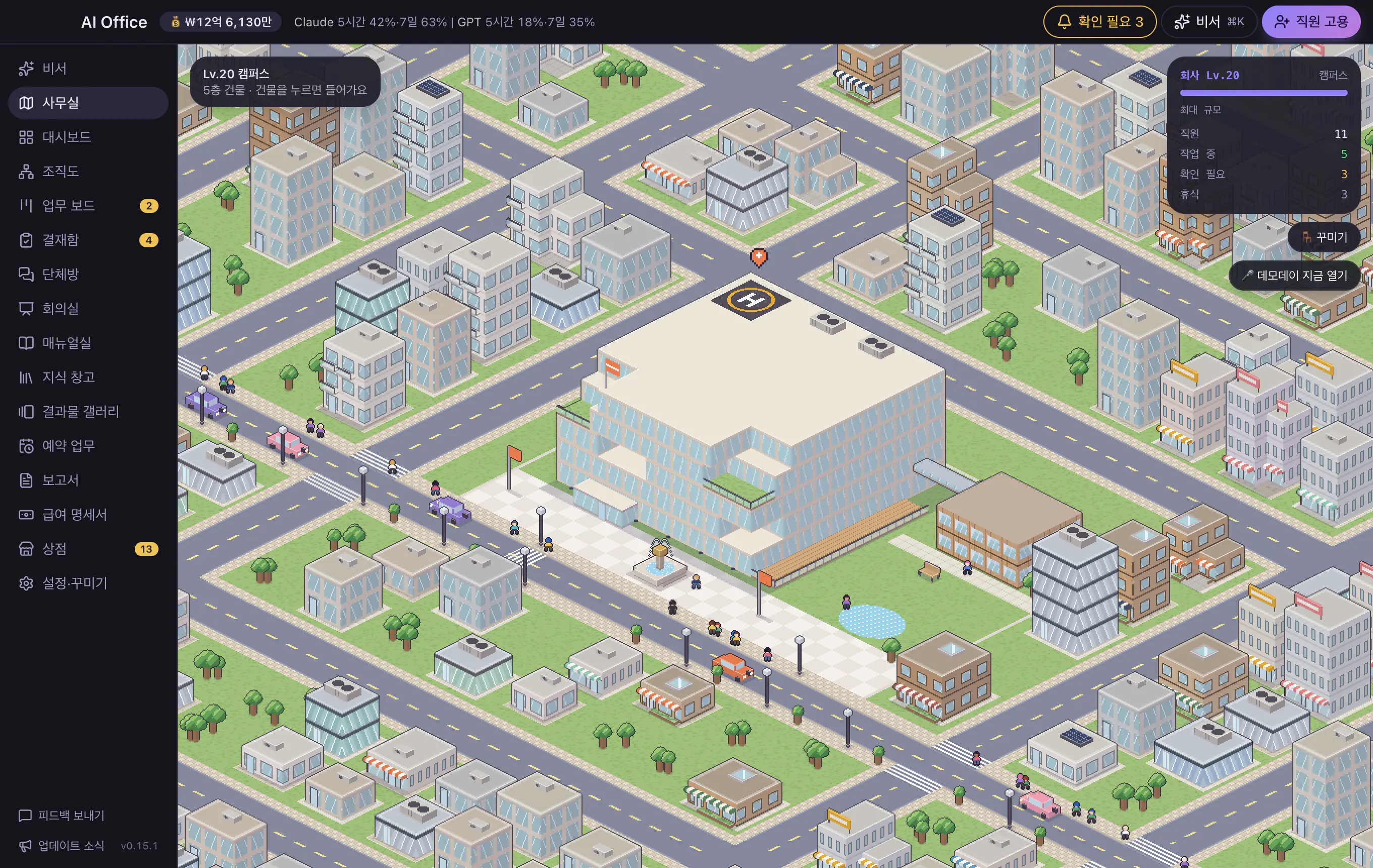
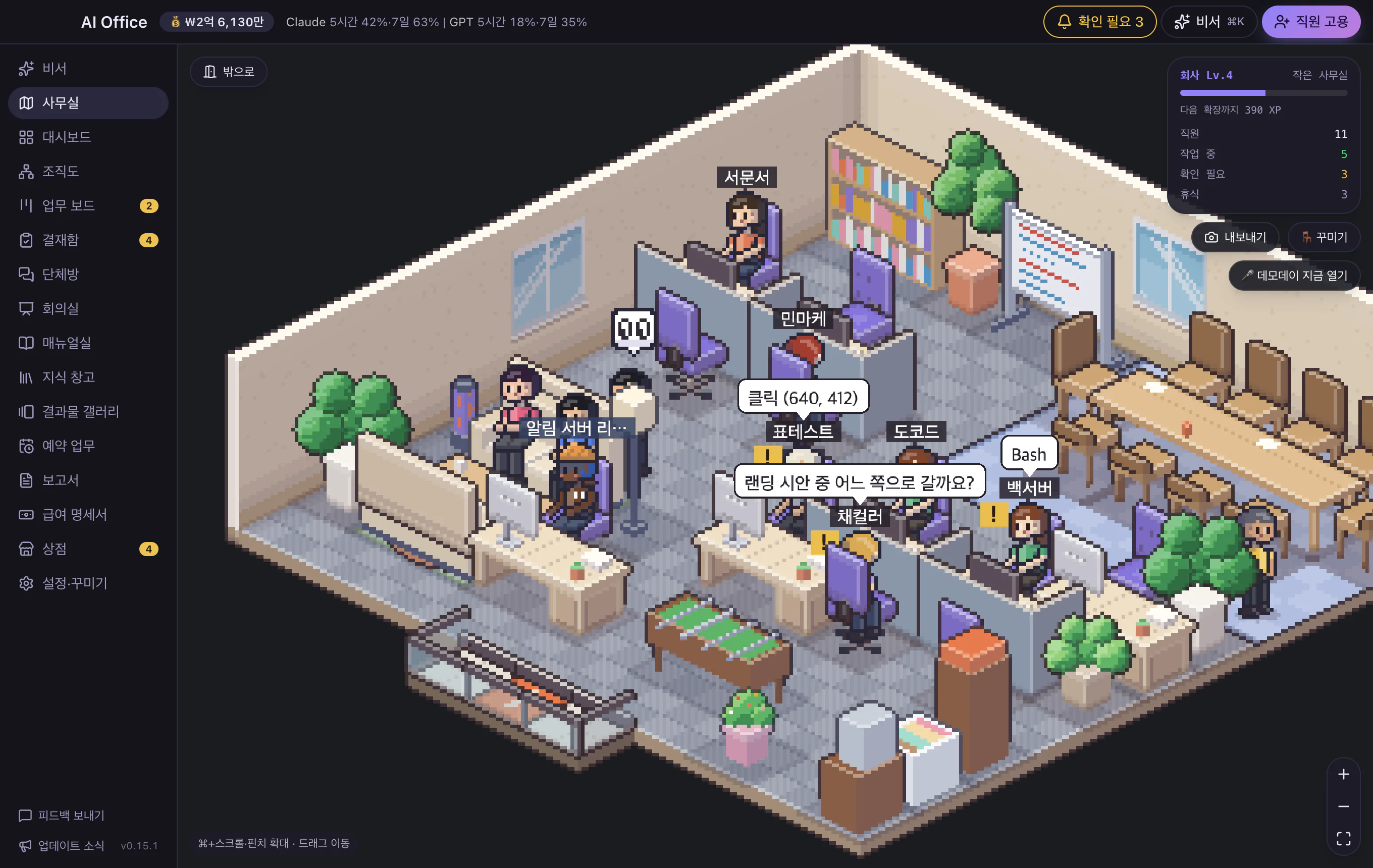
Buy furniture, wallpaper, partitions, cats and dogs in the shop. Rotate a desk and chair as one set and assign it to a person. Props like the coffee machine and aquarium move and react. Or ask the secretary to “arrange it nicely.” Twelve new pieces arrive too, from low partitions and wood, brick, plant, and glass walls to a book stack and a mini fridge.
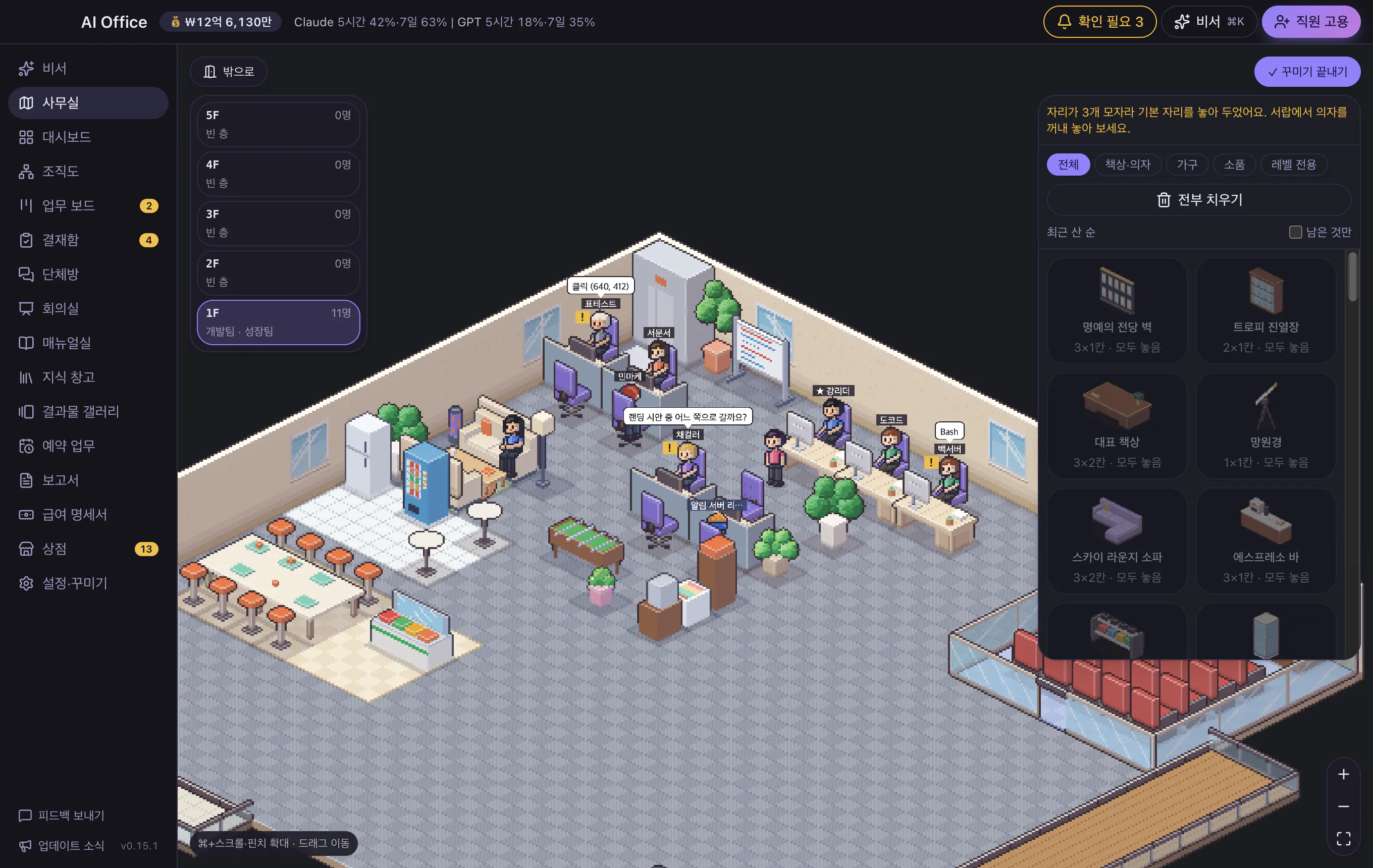
On a set day and time, staff step on stage and present what they finished. Results gather in a gallery you can filter by period, person, or lab.
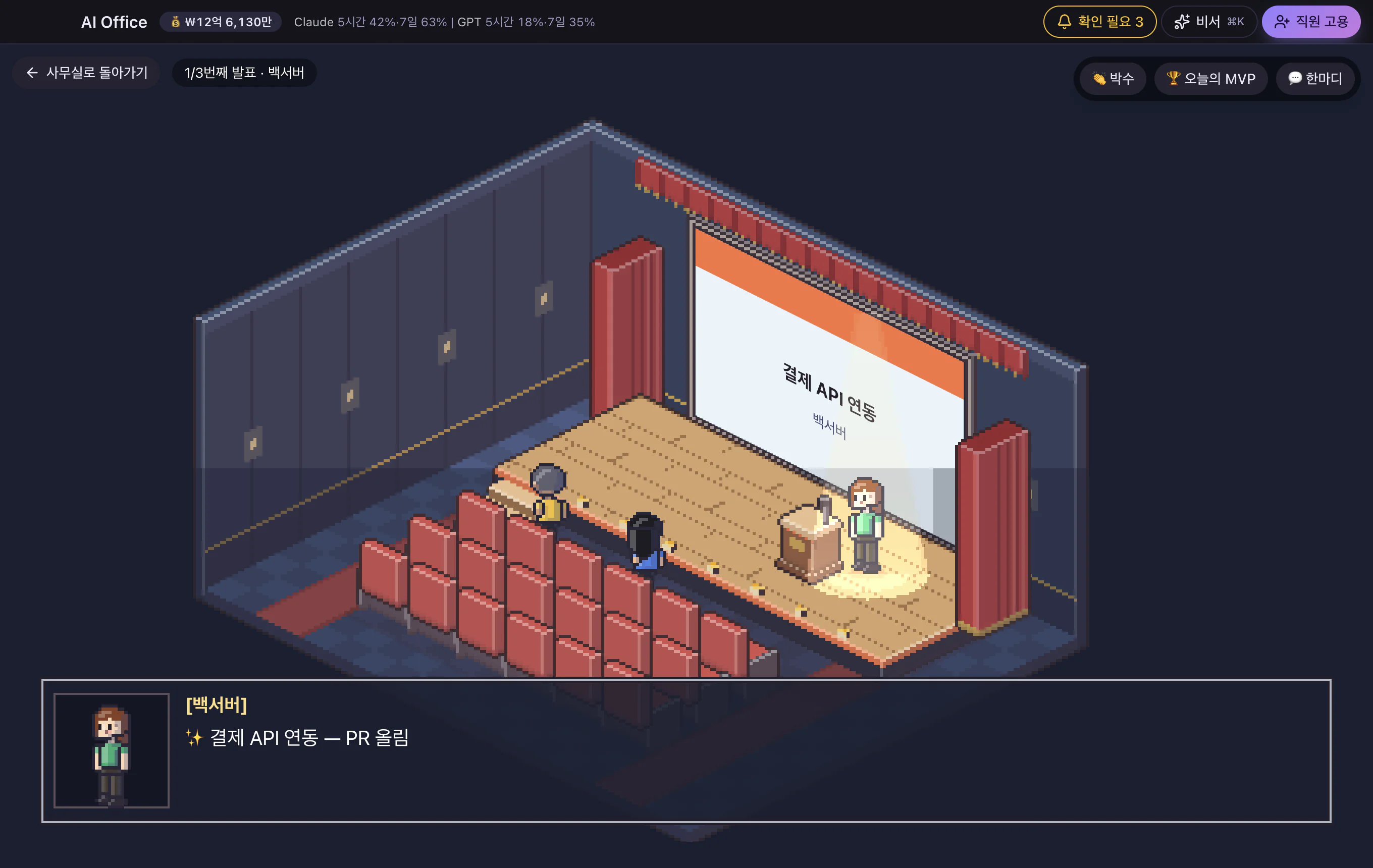
Save the current office scene as a photo (PNG) or a 10-second animated GIF. You can choose to hide the speech-bubble text, so it’s ready to share. Available in the PC app.
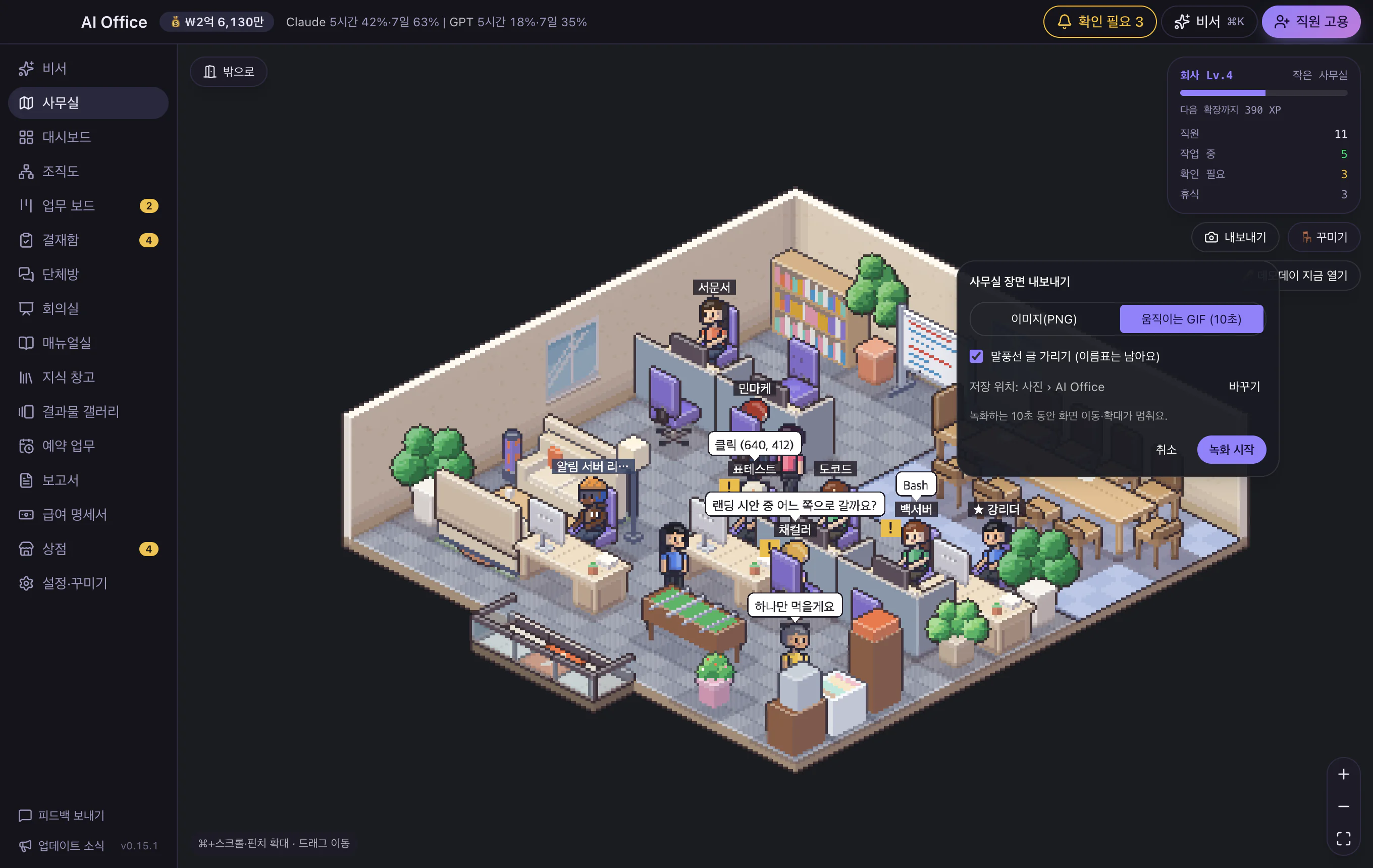
A team lead hands work to a teammate, and the teammate walks over to report. Colleagues peek over a shoulder (👀), go help someone who’s stuck (?), and celebrate with high-fives and applause. They sometimes chat about the work, run for coffee, and wave when you click them. It’s only shown on screen, so your work and records aren’t affected.
Link the Android app to your PC and use the dashboard, approval inbox, and group chat from your phone — even outside your home network.
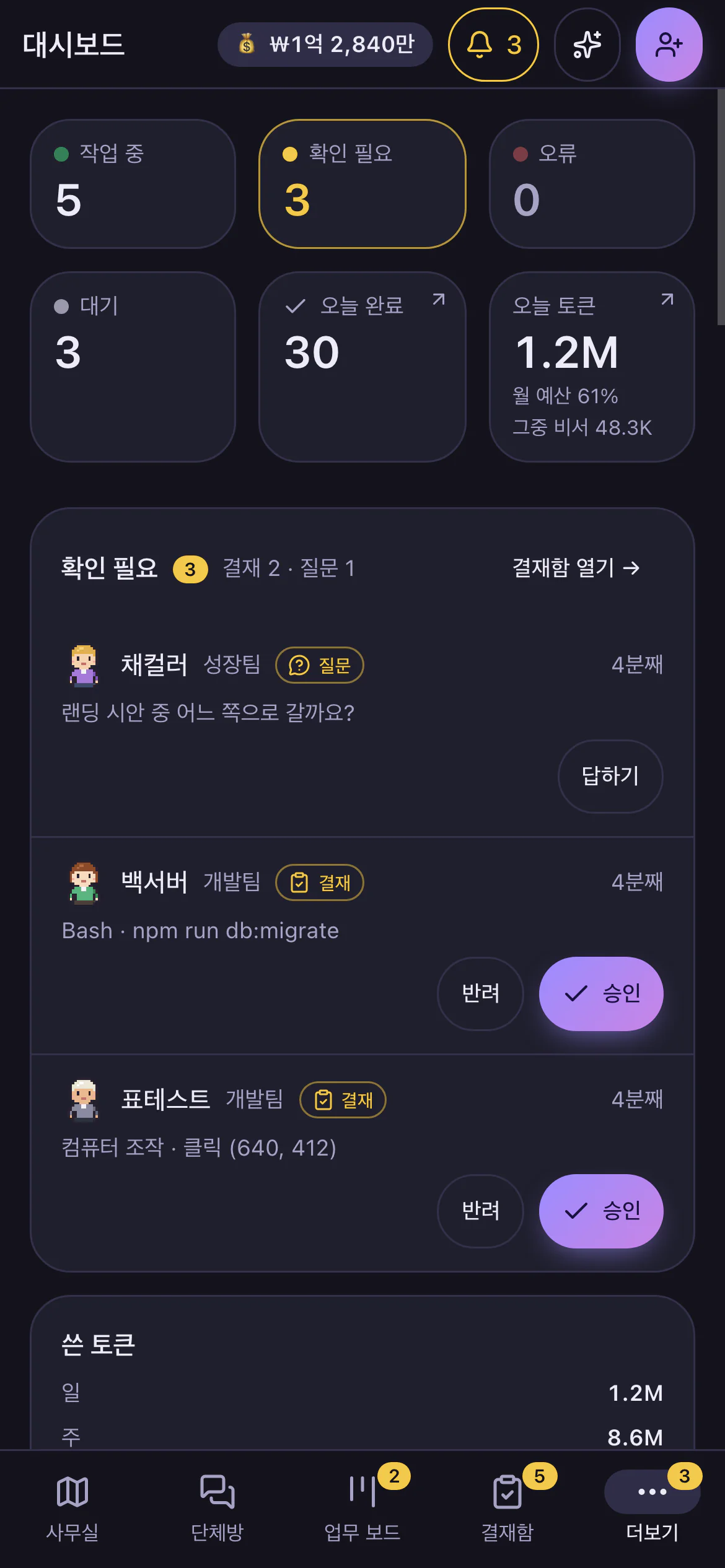
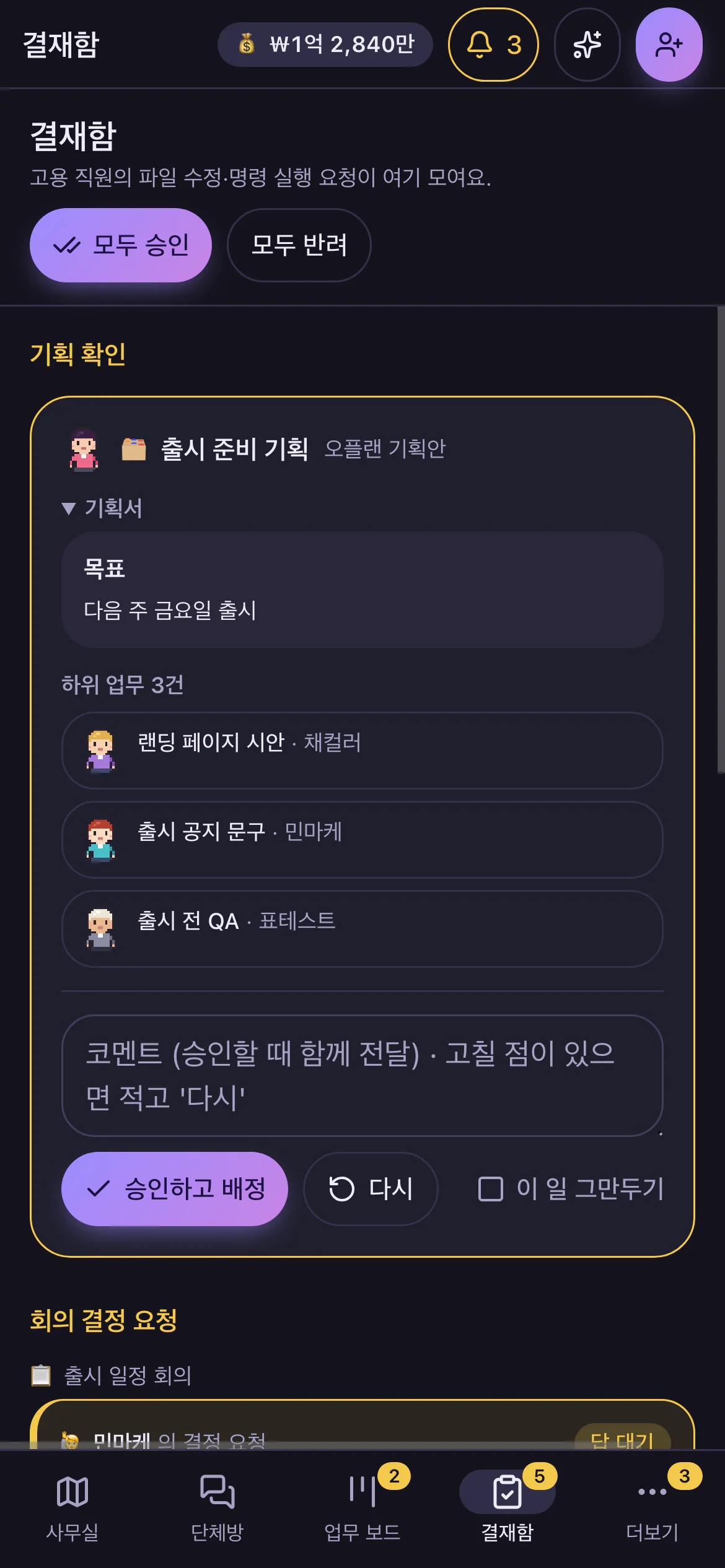
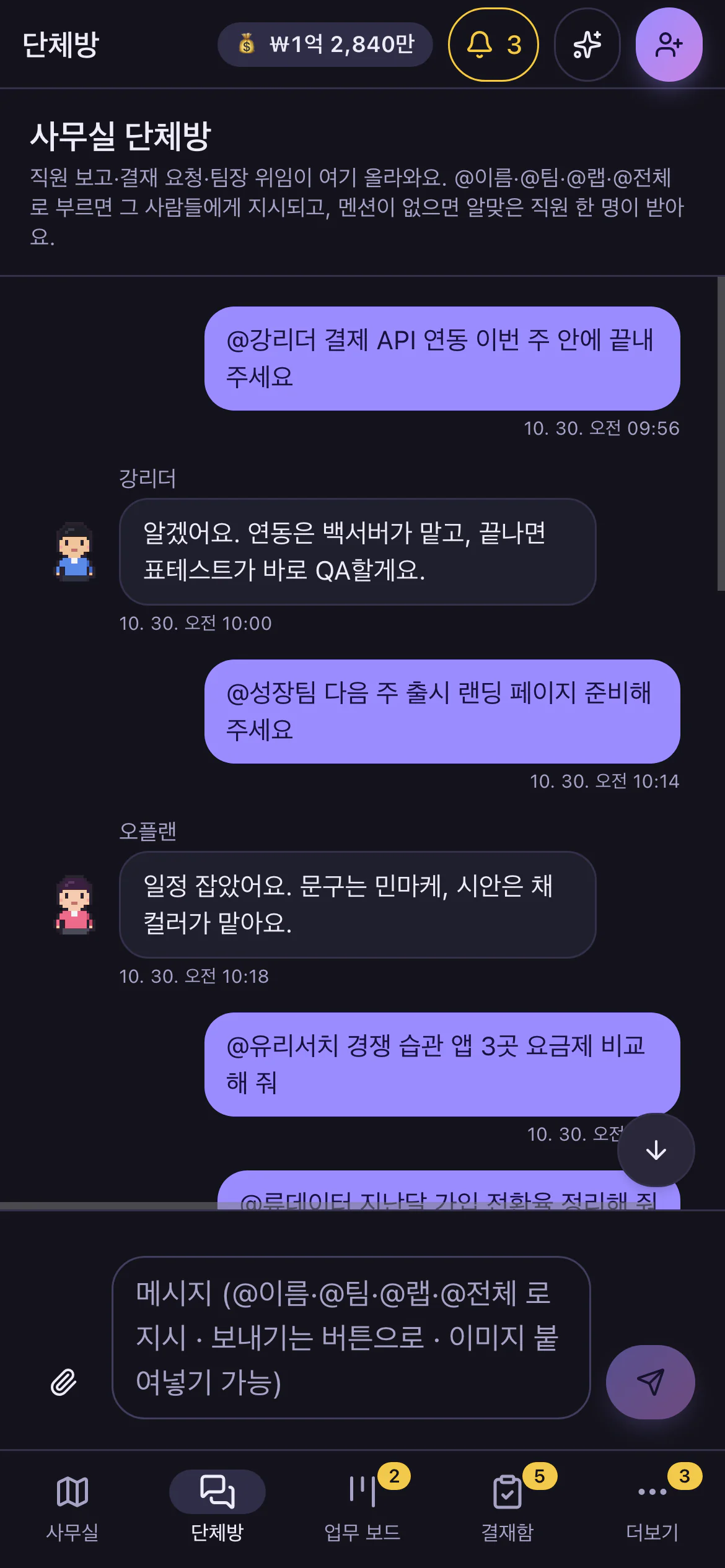
No router changes — it connects over a private link between your own devices (Tailscale). You can also limit it to the same Wi-Fi.
You can open the staff market and hire from your phone too, and when a demo day starts, a banner takes you straight to the stage. If your PC app is out of date, the phone shows an update notice.
One logged-in account, Claude or GPT (ChatGPT), is enough to start.
AI Office is in beta, so a few limits apply. Tell us what bothers you through feedback.
No. It uses the Claude or GPT (ChatGPT) account already logged in on your computer. Staff work under that account and usage counts against it.
No. One logged-in account is enough to start; connect the other later in Settings. With both, you choose per employee which one they work on. GPT staff are still in beta.
Yes. Hire staff, give work in chat, and approve or reject in the inbox. You never type a command.
The app isn’t code-signed yet. On Mac, choose “Open Anyway” in System Settings › Privacy & Security. On Windows, choose “More info › Run anyway”.
High-impact actions go to the approval inbox first and only proceed once you approve. You can roll back everything they changed with “Undo to before the task,” and risky commands that can’t be undone are always blocked.
Staff, tasks, and chats are stored on your computer. Phone connection is off by default and only connects when you turn it on. The app doesn’t hold your GPT sign-in; the login tool manages it.
No. Only staff given the computer kit can see your screen, and clicks and typing happen only after you approve them in the inbox.
No. It’s a remote for the AI Office running on your PC, so the PC app must be on. It also works away from home.
Korean, English, Japanese, and Chinese. It starts in your computer’s (or phone’s) language, or English if that isn’t supported. You can change it anytime under Language at the top of Settings.
Yes. In Settings, pick one of six color themes and light, dark, or follow-device mode. The phone app follows your PC’s choice.
Press “Send feedback” in the app’s left sidebar. It opens a GitHub form with your app version and operating system already filled in.
It’s free, and a few minutes after installing you can hand a first task to Claude or GPT.
Get it free